
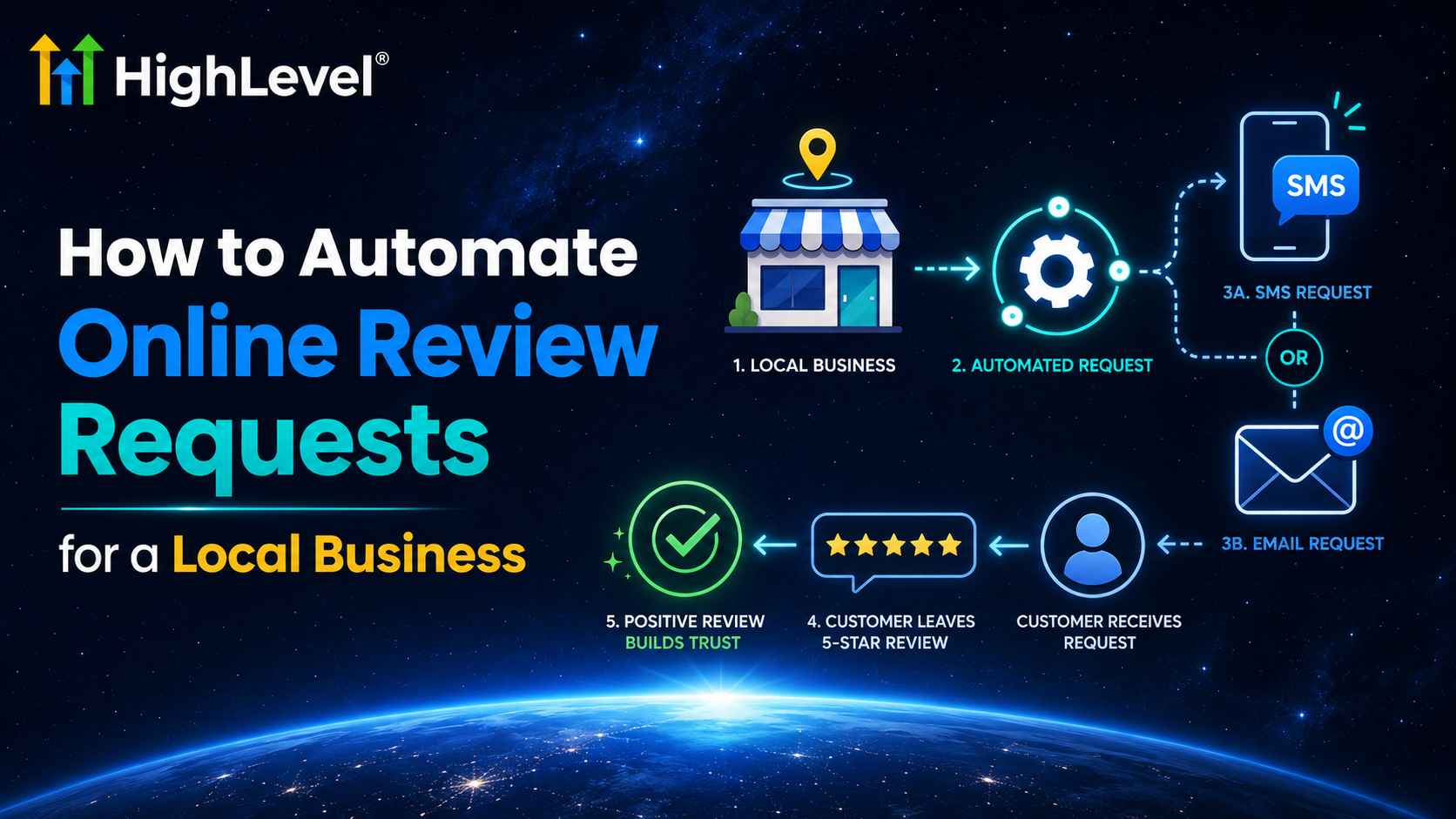
Learning how to automate online review requests for local business starts with one operational question: what event proves the customer actually received the service? For a dentist, it may be a completed appointment. For a roofer, the final job stage. For an accountant, a completed deliverable. For a restaurant, a real visit or completed order.
Why local-business automation needs location and service context
A generic automation can send the wrong link, ask before work is finished, message a canceled appointment, or request several reviews for one project. A local system must know the service, branch/location, customer status, communication consent, and prior request history.
Choose a trigger by business model
Appointments
Examples: dental, chiropractic, salon, spa, consulting.
Trigger: Appointment Status = completed/showed.
Avoid: booked or confirmed.
Jobs and projects
Examples: HVAC, plumbing, roofing, remodeling.
Trigger: pipeline stage = Job Complete.
Avoid: estimate accepted or deposit paid.
Invoices
Examples: cleaning, legal, accounting, repairs.
Trigger: invoice paid when it truly means completion.
Avoid: deposits or disputed invoices.
Local retail/food
Examples: restaurants and stores.
Trigger: fulfilled order, receipt QR, or known visit.
Avoid: unverified bulk contact lists.
Step-by-step HighLevel setup
Step 1: Map every location to the correct review destination
Connect the Google Business Profile for the correct branch or paste the approved custom link under Reputation → Settings → Review Link. Test each location separately. A multi-location brand should never assume one link fits every branch.
Step 2: Prepare one SMS and one email template
In Reputation Settings, enable the channels you can lawfully use, add the direct review token, set conservative cadence/retries, and assign both Live and Retry templates. Identify the local business or branch in the first line.
Step 3: Build the workflow around completed value
Create a workflow from scratch. Select Appointment Status, Pipeline Stage Changed, Invoice, Order Fulfilled, or a controlled tag. Filter to the exact calendar, pipeline, service, team, or location.
Step 4: Exclude ineligible records
Use If/Else logic to exclude canceled/no-show appointments, refunded or disputed transactions, open jobs, test contacts, staff, invalid details, and recent prior requests. Do not use a satisfaction score to decide who receives the public-review invitation.
Step 5: Add a context-appropriate delay
A salon may send soon after checkout; an HVAC customer may receive it after final testing; a contractor may wait until handoff; a healthcare business should use privacy-conscious wording and approved processes. Respect quiet hours and recipient timezone.
Step 6: Add the Review Request action
Select Review Request and the first channel. The action uses the templates and destination configured in Reputation Settings.

Step 7: Add local ownership
Create an internal notification or task for failed deliveries, direct replies, and new review follow-up. Assign it to the location manager or service owner with a response target, such as one business day.
Step 8: Test the customer journey
Complete a test appointment/job for each branch. Verify the correct link, sender identity, timing, opt-out handling, duplicate prevention, CRM history, and reporting. Then launch to one service line before expanding.

Automate reviews after completed local service
HighLevel connects appointments, pipelines, invoices, CRM, messaging and reputation tools.
Start Your 30-Day HighLevel Trial
Affiliate disclosure: we may earn a commission if you use this link. Usage charges may apply.
Templates by local business type
Home service SMS: “Hi {{contact.first_name}}, thank you for trusting {{location.name}} with your recent service. Would you share your honest experience? {{reputation.review_link}}”
Appointment business SMS: “Thank you for visiting {{location.name}} today. If you have a moment, we welcome your honest feedback: {{reputation.review_link}}”
Professional service email: “Now that we have completed [milestone], we would value your honest feedback about working with our team. Your comments help us improve and help local customers understand what to expect.”
Policy and privacy safeguards
- Ask customers with genuine experiences and use neutral language.
- Do not offer incentives or request a specific rating.
- Do not selectively ask only positive respondents.
- Identify the sender and honor channel opt-outs.
- Avoid revealing sensitive service details in SMS/email previews.
- Limit access to customer and review-response data.
- Keep a manual pause option for disputes, refunds, or active complaints.
Local reporting dashboard
- Eligible completed services by location.
- Requests sent and request rate.
- Delivery/failure rate by channel.
- Review-link clicks.
- New reviews and average rating trend.
- Review velocity by location/service.
- Response time to reviews and direct replies.
- Opt-outs and complaints.
Compare locations using rates, not raw counts. A high-volume branch will naturally receive more reviews.
Common failures
- One corporate link sends customers to the wrong local listing.
- A booked appointment is mistaken for a completed visit.
- Deposits trigger requests before work begins.
- Every line item or technician action creates another request.
- No one owns replies to negative feedback.
- SMS, email and WhatsApp all send simultaneously.
- Templates use sensitive service descriptions or internal merge fields.
Frequently asked questions
What is the best trigger for a local business?
The event that most reliably proves value was delivered: completed appointment, fulfilled order, final job stage, or paid final invoice.
Can one workflow support multiple locations?
It can, but separate location-specific workflows and links are often easier to audit. If you centralize, use precise branching and test every branch.
Should I send SMS and email together?
Usually start with one primary channel and use a measured fallback. Simultaneous messages can feel excessive.
Can I automate responses to reviews?
Automation can assist with alerts and drafts, but sensitive or negative reviews deserve human oversight and a clear escalation policy.
Make the automation reflect your real operation
The core lesson in how to automate online review requests for local business is that the software should mirror completed service—not replace judgment. Choose the right milestone, connect the correct location, keep the request neutral, and assign humans to exceptions and responses.
Launch a controlled local review workflow
Start with one branch and one service, validate the full path, then scale.
Start Your 30-Day HighLevel Trial
Affiliate disclosure: we may earn a commission if you use this link, at no additional cost to you.
Related Posts