
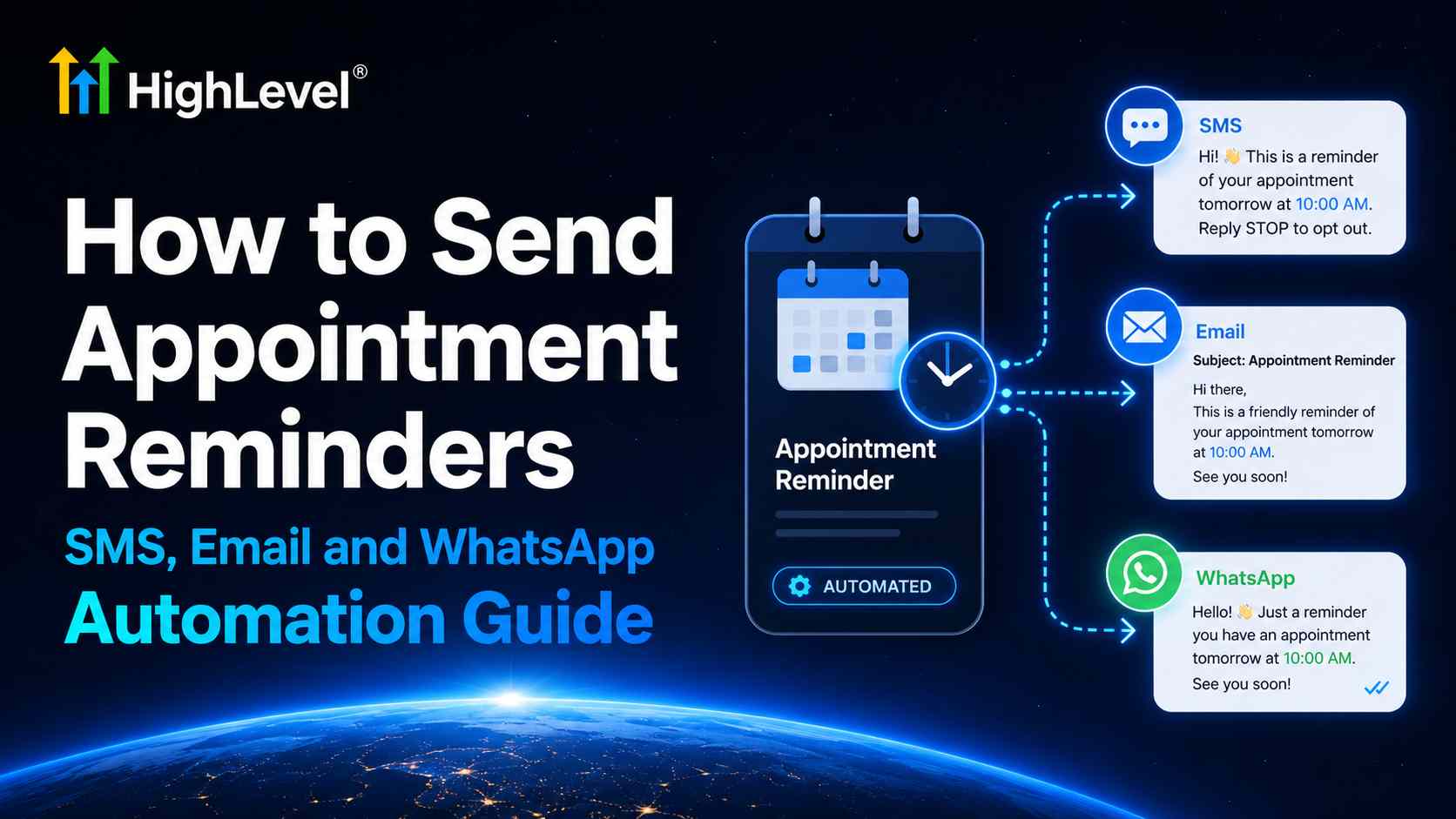
An appointment reminder should make it easy for a customer to remember the date, recognize the business, confirm the appointment, and know what to do if plans change. When staff members send every reminder manually, timing becomes inconsistent and busy days create gaps.
This guide explains how to send appointment reminders via text using HighLevel’s native calendar notifications. You will also learn how to add email and WhatsApp reminders, choose timing, personalize messages, test each channel, and avoid duplicate notifications.
Quick answer: In HighLevel, open Calendar → Calendar Settings, select the calendar, open Notifications, choose Reminder, enable the SMS tab, select the recipients and template, define how long before the appointment it should send, run a test, and save. Repeat the process for email or WhatsApp when those channels are appropriate.
Table of contents
How automated appointment reminders work
An automated reminder uses the appointment date and time stored in a booking calendar. The system calculates when each notification should be sent, fills the message with appointment details, and delivers it through the selected channel.
HighLevel supports calendar notifications for several appointment events:
- Appointment booked with an unconfirmed status.
- Appointment booked or updated with a confirmed status.
- Cancellation, no-show, or invalid appointment.
- Rescheduled date or time.
- Reminder before the appointment.
- Follow-up after the appointment.
Notifications can be configured for contacts, guests, users, and additional email addresses or phone numbers. The calendar method is usually the fastest way to build standard reminders. A HighLevel workflow is useful when you need more advanced branching, tags, internal escalation, or different messages based on appointment status.
SMS vs. email vs. WhatsApp appointment reminders
| Channel | Best for | Strengths | Important requirement |
|---|---|---|---|
| SMS | Short, time-sensitive reminders | Fast to read and easy to reply to | Valid phone number with country code, consent, registration, and usage budget |
| Detailed instructions, forms, maps, and preparation material | More space, formatting, links, and attachments | Configured sending domain or service and a clear subject line | |
| Customers who prefer WhatsApp and supported international audiences | Familiar conversation channel and approved templates | Connected and verified WhatsApp Business Account plus approved template | |
| In-app | Internal staff alerts | Keeps the team informed inside HighLevel | Correct users selected in calendar notification settings |
You do not need to send every notification through every channel. Too many reminders can feel intrusive. Choose the smallest sequence that gives customers enough time to confirm, reschedule, or prepare.
Recommended appointment reminder timing
The best schedule depends on the appointment’s value, lead time, preparation requirements, and cancellation policy. A practical starting sequence is:
| Timing | Channel | Purpose |
|---|---|---|
| Immediately after booking | Email + optional SMS | Confirm the appointment details and provide location or meeting link |
| 48 hours before | Provide preparation instructions and an easy way to reschedule | |
| 24 hours before | SMS or WhatsApp | Request confirmation while there is still time to adjust the schedule |
| 2 hours before | Short SMS | Give a final same-day reminder with the essential details |
| After the appointment | Email or SMS | Send next steps, a review request, or a follow-up link |
For appointments booked less than 24 hours in advance, prevent the automation from sending several reminders at once. Use a shorter sequence or workflow conditions based on time remaining.
Automate the complete appointment journey
Use HighLevel calendars, SMS, email, WhatsApp, workflows, CRM records, and pipelines in one platform.
No contracts • Cancel anytime. Disclosure: we may earn a commission if you start a trial through this link, at no additional cost to you.
What you need before setup
- A HighLevel booking calendar: reminders are configured at the individual calendar level.
- Correct business timezone: the calendar, users, and customer data must reflect the intended appointment time.
- SMS capability: configure an appropriate phone number, messaging registration, consent, and opt-out handling.
- Email sending: connect and authenticate the sending service and prepare a subject line.
- WhatsApp connection: connect and verify the WhatsApp Business Account and have approved templates available.
- Accurate contact fields: phone numbers should include country codes, and email addresses should be valid.
- Appointment details: confirm the location, meeting link, assigned user, service name, date, time, and timezone.
Visual tutorial: how to send appointment reminders via text in HighLevel
The screenshots below come from HighLevel’s official calendar-notification documentation. The interface may evolve, but the workflow and labels provide a reliable path.
Step 1: Open Calendar Settings
Enter the correct HighLevel sub-account. Go to Calendar and open Calendar Settings. This area lists the calendars available in the location.

Step 2: Select the calendar and open Notifications
Choose the calendar that owns the appointments. Open its settings and select the Notifications tab. Configure each calendar separately when services, teams, or locations need different messages.

Step 3: Choose the Reminder notification type
The notification list includes booked, confirmed, cancellation, reschedule, reminder, and follow-up events. Select Reminder to configure messages that send before the appointment.

Step 4: Choose recipients and channel
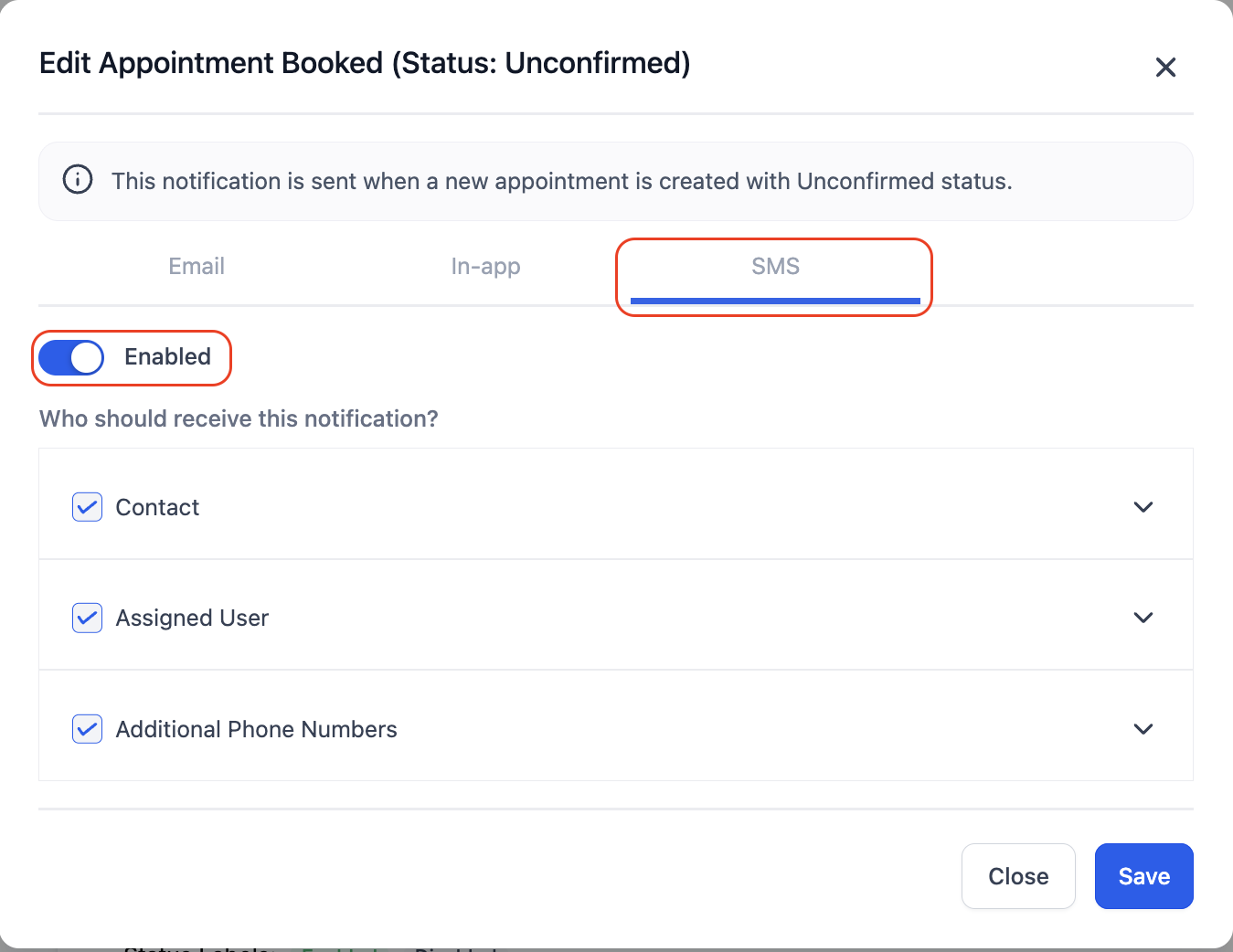
Decide whether the contact, guest, assigned user, or additional recipient should receive the notification. Disable receiver types that should not get a particular message. This prevents internal instructions from reaching customers and reduces duplicate notifications.

Step 5: Enable the SMS reminder
Open the SMS tab and enable the toggle. Select the contact or other appropriate recipient. Additional phone numbers must include country codes. Choose an existing SMS template or create one for this calendar.
Step 6: Edit the SMS, add timing, and send a test
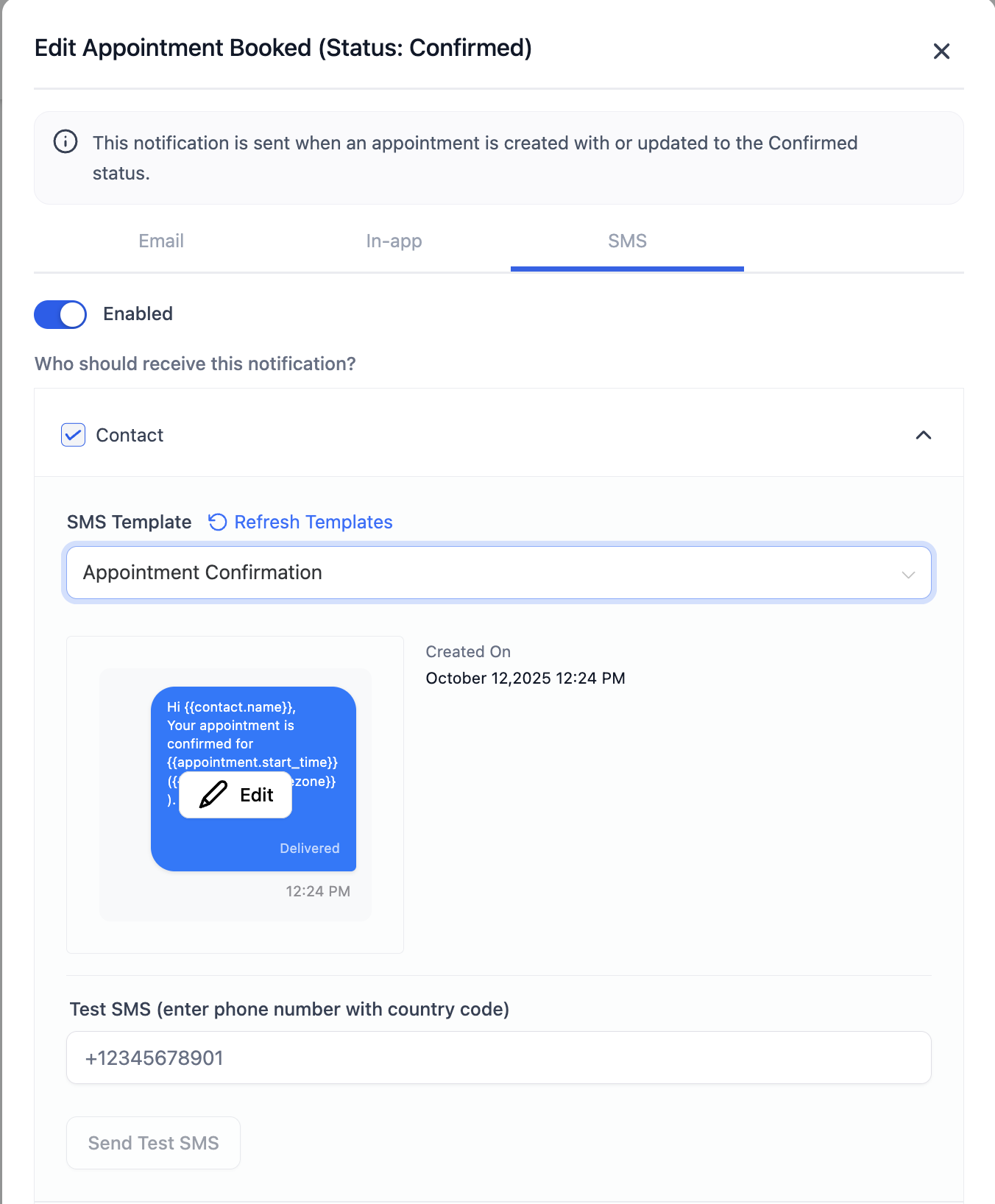
Write a concise message with the business name, appointment date, time, timezone, and reschedule or confirmation instruction. Use the merge-field icon to insert appointment or custom values. Set when the reminder should send, then use Send Test SMS with a test number before saving.
Step 7: Configure the email reminder
Open the Email tab for the same Reminder notification. Turn it on, select recipients, choose an email template or write the subject and body, and define how far in advance it should send. Include longer preparation instructions, forms, maps, parking details, or video links here instead of overloading the SMS.
Step 8: Configure WhatsApp when appropriate
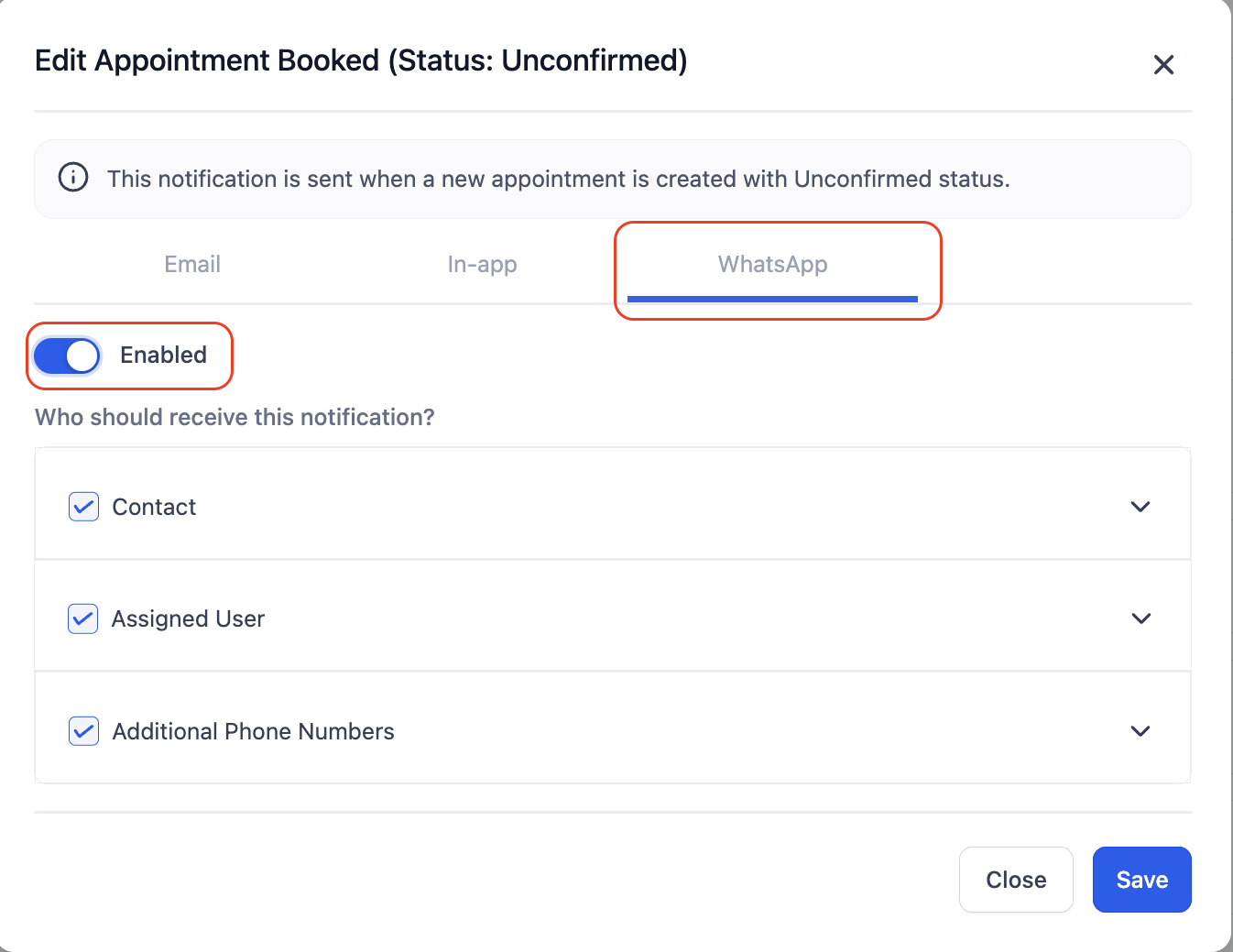
Open the WhatsApp tab and enable it. Select the recipients and choose an approved template. Your WhatsApp Business Account must be connected and verified. Use Fetch New Templates if a recently approved template is missing, send a test, and save.
Step 9: Save and test the complete sequence
Save each channel and receiver configuration. Create a test appointment with your own phone number and email address. Verify the confirmation, reminders, links, timezone, sender identity, cancellation behavior, and follow-up. Then cancel or reschedule the appointment and confirm that the correct notification replaces the old schedule.
Appointment reminder text, email, and WhatsApp templates
24-hour SMS reminder
Reminder from {{location.name}}: your appointment is {{appointment.start_time}}. Reply C to confirm or use {{custom_values.reschedule_link}} to choose another time. Reply STOP to opt out.
Two-hour SMS reminder
Your appointment with {{location.name}} starts in 2 hours at {{appointment.location}}. Need help? Reply to this text. Reply STOP to opt out.
Appointment reminder email
Subject: Reminder: your appointment with {{location.name}}
Hi {{contact.first_name}},
This is a reminder that your appointment is scheduled for {{appointment.start_time}} at {{appointment.location}}.
Please arrive 10 minutes early and complete any required forms before your visit. If you need to reschedule, use this link: {{custom_values.reschedule_link}}.
We look forward to seeing you.
WhatsApp reminder template concept
Hello {{1}}, this is a reminder that your appointment with {{2}} is scheduled for {{3}}. Reply to confirm or use {{4}} to reschedule.
WhatsApp variable format and template approval depend on the connected account and template category. Build the message inside the approved-template process rather than copying placeholders blindly.
When to use a workflow instead of native calendar notifications
Native notifications are best for standard messages tied directly to one calendar. Use workflows when you need:
- Different reminders based on appointment status, service, tag, pipeline stage, or lead value.
- Internal escalation when a contact does not confirm.
- A branch for contacts who reply versus those who remain silent.
- Automatic opportunity updates or task creation.
- Reminders shared across several calendars with centralized logic.
- Post-appointment sequences based on showed or no-show status.
A common workflow begins with the Appointment Status trigger filtered to New or Confirmed and to the correct calendar. Add a Wait step tied to the appointment time, send the reminder, wait for a reply or confirmation, and notify a team member when no response arrives.
Do not activate the same reminder in both Calendar Notifications and a workflow unless duplication is intentional. Audit every channel and timing before publishing.
Testing checklist
- Create appointments more than 48 hours away, within 24 hours, and on the same day.
- Test confirmed, unconfirmed, canceled, and rescheduled statuses.
- Verify the displayed timezone and daylight-saving behavior where relevant.
- Confirm phone numbers include the correct country code.
- Check every merge field when the contact name or meeting link is missing.
- Send tests to SMS, email, and WhatsApp before enabling real customers.
- Verify guests and additional recipients do not receive duplicate messages.
- Check message segments and usage costs for long SMS content.
- Confirm STOP and other required opt-out processes work.
- Make sure canceled appointments do not continue receiving old reminders.
Common appointment reminder mistakes
Sending too many notifications
Confirmation plus multiple email, SMS, and WhatsApp reminders can create fatigue. Start with a small sequence and add touchpoints only when the data supports them.
Forgetting the timezone
A correct date with the wrong timezone is still a failed reminder. Include the timezone when customers or teams operate across regions.
Using long SMS messages
SMS is billed by segments. Put detailed preparation instructions in email and keep text reminders concise.
Leaving out confirmation or rescheduling instructions
A reminder should tell the recipient what to do next. Use a simple reply instruction or a reliable rescheduling link.
Duplicating native notifications with workflows
Review Calendar Notifications, workflows, external calendar emails, and guest confirmations together. Two systems may send similar messages for the same event.
Using WhatsApp without approved templates
Connect and verify the WhatsApp Business Account, use approved templates, and test the final formatting before enabling the notification.
Ignoring consent and industry requirements
Follow the messaging, privacy, consent, opt-out, and recordkeeping requirements that apply to your country, industry, and audience. Avoid placing sensitive information in ordinary reminder messages.
Frequently asked questions
How do I send appointment reminders via text?
In HighLevel, open Calendar → Calendar Settings, select the calendar, open Notifications, choose Reminder, enable SMS, select the recipients and template, define the time before the appointment, send a test, and save.
Can HighLevel send SMS, email, and WhatsApp reminders?
Yes. HighLevel’s calendar notifications support SMS, email, WhatsApp, and in-app notifications. Each channel has its own setup and requirements.
When should appointment reminder texts be sent?
A common starting point is 24 hours before the appointment, with an optional short same-day reminder. Adjust timing for booking lead time, preparation, cancellation policy, and customer preference.
Can customers confirm by replying?
You can invite a reply in the message and manage responses through Conversations or a workflow. Test the exact confirmation logic you configure; a free-text reply does not automatically change appointment status unless your process handles it.
Can I send reminders to appointment guests?
Yes. HighLevel supports guest recipients, but check confirmation and reminder settings carefully to prevent duplicate emails or texts.
Do SMS appointment reminders cost extra?
Yes. HighLevel states that SMS is billed by message segments and is subject to usage charges. Keep messages concise and review the current phone-system pricing for your region.
Why did a canceled appointment still receive a reminder?
Check whether the reminder was scheduled by Calendar Notifications, a workflow, or an external calendar system. Verify that cancellation changes the appointment status and that every automation stops or branches correctly.
Can I use different messages for different calendars?
Yes. Native notifications are configured at the individual calendar level, so services, locations, and teams can use different timing, templates, and recipients.
Build a reminder sequence customers can act on
Learning how to send appointment reminders via text is not only about scheduling an SMS. A useful reminder sequence gives the customer accurate details, a clear action, and enough time to confirm or reschedule.
HighLevel lets you combine native calendar notifications with SMS, email, WhatsApp, in-app alerts, CRM records, and advanced workflows. Start with one reliable calendar, test every message, and expand only after the basic sequence works.
Ready to automate your appointment reminders?
Set up your calendar, follow the visual tutorial, test SMS, email, and WhatsApp, and manage every conversation from one platform.
Try GoHighLevel Free for 30 Days
No contracts • Cancel anytime. Disclosure: we may earn a commission if you start a trial through this link, at no additional cost to you.
Related Posts